

How to Create Custom Ink Bleeds in After Effects (New Template Update)

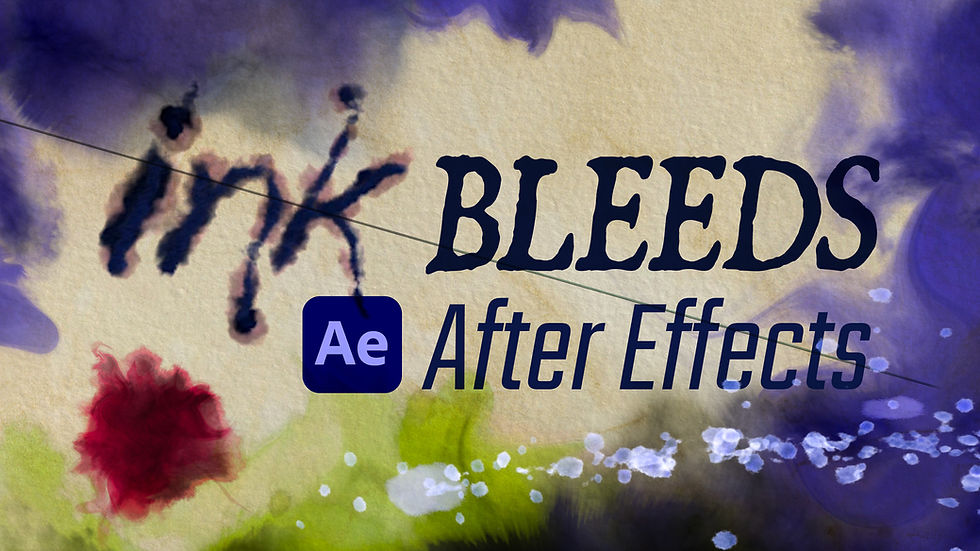
We have completely overhauled and rebuilt one of our classic tools from the ground up: the brand-new Ink Bleeds & Blots template for Adobe After Effects is here. If you have ever used stock footage video clips of ink drops, you know how limiting it can be. You are stuck with someone else’s timing, someone else's colors, zero flexibility - not to mention the price tag, often exceeding $50. This updated template changes all of that by delivering 100% procedural, highly customizable organic fluid effects right inside your composition. This package gives you total creative control over the shape, speed, and behavior of your ink.
What’s New & Key Features
Here is a breakdown of what is packed inside the new version to elevate your next project:
10 Custom Presets: A variety of pre-built ink bleed styles ready to copy and paste directly into your active comps. You can easily fine-tune every parameter—like detail levels, turbulence, and bleed speed—using intuitive slider controls.
5 Ink Bleed Titles: Pulled from our popular Creation Title Effects , these five fully animated text layers work with any font. They offer unique organic behaviors like melting text, dripping ink, or smooth liquid reveals.
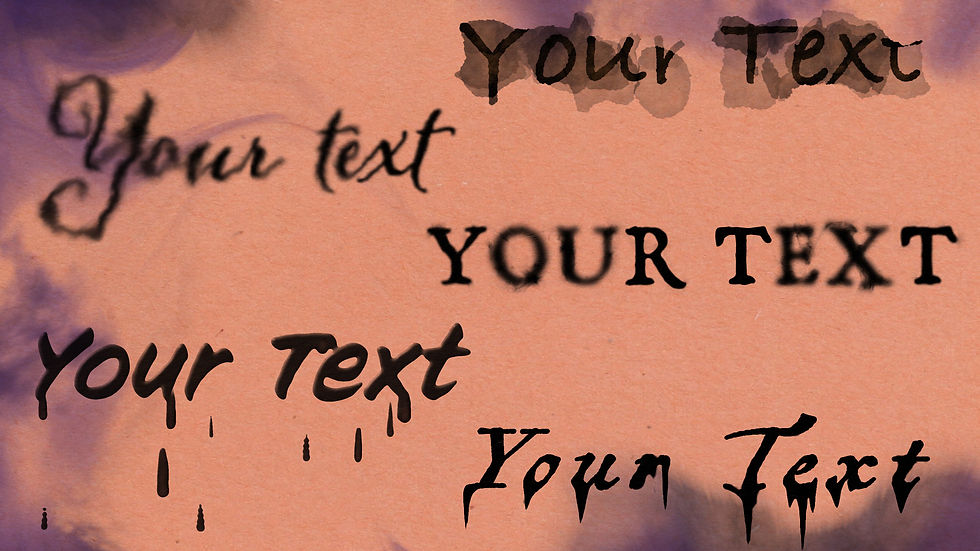
Ink Trails: Borrowed from our Wisp template, this effect lets you set a "Target" layer and watch a realistic ink bleed automatically follow your custom motion path. It's perfect for animating custom line art or handwritten text. The trail expends like bleeding ink as it draws itself out.
Ink Splatters: Generate expanding droplet animations that blossom realistically across your canvas.
37 High-Res Paper Textures: Give your digital ink a physical home. Simply drag and drop one of these high-resolution textures underneath your layer for a different look.
The "Fractal Noisier" Background Generator: By combining specialized Fractal Noise maps with stacked Turbulent Displace stacks, this tool creates mesmerizing, swirly, liquid-chrome, and flowing paint backgrounds.
Original Version Included: Prefer the original aesthetic? We have included the 2015 version of the project file so you choose the right effect for your project.
Step-by-Step: Creating a Custom Ink Bleed
Generating a stunning, customized ink asset from scratch takes less than two minutes.
Step 1: Pick Your Preset and Add Your Text
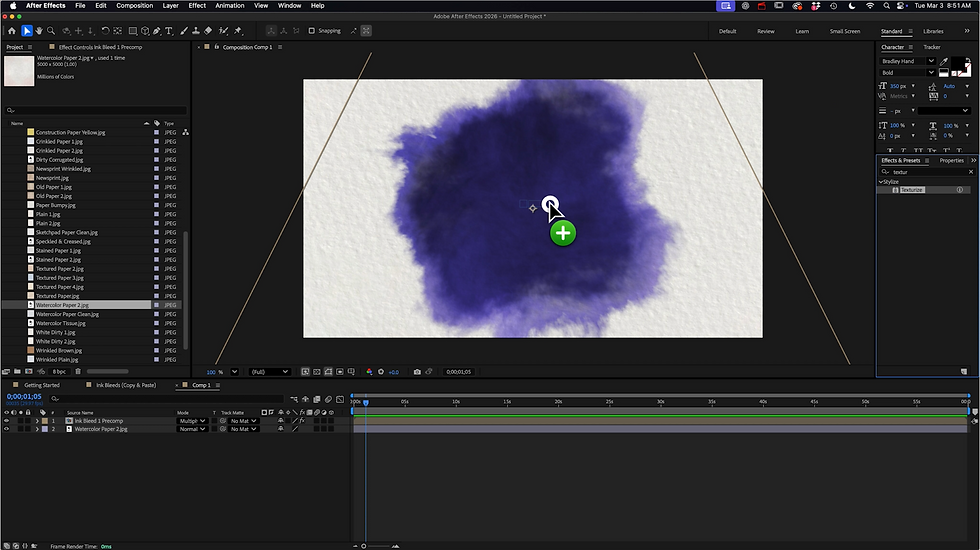
Open the template project file in After Effects (compatible with CC 2020 and later). Browse through the 10 included presets to find a style that matches your project's aesthetic. Copy the preset layer and paste it directly into your main working composition. If you want your ink to fill in a specific graphic or text layer, place your graphic directly above the preset layer. To add a paper background, drag in any paper image from the Extras folder, and experiment with the blending modes on the ink bleed layer to create different looks.

Step 2: Set Your Track Mattes
To ensure the ink fills your graphics organically, navigate to your timeline panel and locate the Track Matte column. Toggle the dropdown menu on your ink bleed layer and select your text or graphic layer as the matte source. Set the matte mode to Multiply so the rich textures blend natively with the background.
Step 3: Animate the Expansion
Each ink bleed layer has customization controls. To create the bleed-in animation, move your timeline playhead to the exact frame where you want the effect to start. Locate the Expansion slider, set it to 0%, and click the stopwatch icon to drop a keyframe. Move forward in time to where you want the bleed to finish expanding, and change the slider value to 100%.
Step 4: Polish Your Timing
To give your fluid motion a more natural, organic deceleration, select both expansion keyframes in your timeline and press F9 to convert them to Easy Ease kefyrames. Open up the Graph Editor and pull the bezier influence handles to create a snappy initial burst that smoothly slows down as the ink saturates the paper grains.
Step 5: Randomize and Customize
If the overall shape of the bleed isn't fitting your layout perfectly, simply double-click the ink bleed to open its precomp. Select the layer inside, and use your Pen tool to change the path's shape, allowing you to create custom shapes that the ink will fill up. Also, in the customization controls, you can change the Random Seed control to give it a new random texture and rough edge.

Head over to the official product page to check out the full video breakdown and download the upgraded Ink Bleeds & Blots template today!


Comments