


How to Make a Stop-Motion Paper Texture Animation in After Effects

If you love the look of mixed-media animations or hand-crafted stop-motion graphics, you’ve probably searched for stock footage of paper texture loops before. But buying a stock clip can cost upwards of $50—and worse, and they usually just loop the same five frames over and over, making the repeating pattern glaringly obvious.
Save yourself the money and make something continuously random by following this simple After Effects tutorial. All you need is After Effects and a high-resolution paper texture, which you can download for free from a public-domain stock image site.
(Short on time or want a library of premade options? Check out the Animated Paper Textures from Creation Effect — a pack of 50 customizable animated textures for just $25 with effects make your footage or graphics look realistically printed on your paper texture – all customizable with slider controls.
You can watch the video version of this tutorial on YouTube here: How to Make Animated Paper Textures in After Effects. Or If you’re ready to follow along, let’s dive in...
Step 1: Prep Your Paper Texture
First things first: you need a paper texture. You can scan your own paper or grab a free high-resolution texture image from a site like Pixabay or Pexels.
Open up After Effects, create a new HD composition, and drag your texture image right into your timeline. The image should ideally be quite a bit bigger than your composition bounds.
Step 2: Add Random Position Movement with Wiggle
To give the texture continuous, random movement on every frame, we'll add a Wiggle expression.
Expand the paper layer. Hold down Alt (or Option on Mac) and click the stopwatch icon next to the layer's Position property.
In the Expression box that opens up, type in a simple wiggle expression:
wiggle(100, 1500);
This tells After Effects to wiggle the position 100 times a second, with a movement range of 1500 pixels.
Right away, you’ll notice the image changes on every frame—which is awesome—but you may also start seeing the hard edges of your image frame.
Step 3: Eliminate Edges with CC Reptile
Don't panic about the visible edges; we can easily fix them with a built-in effect.
Go to Effect > Stylize > CC Reptile.
Tile your image out in all directions—bump it up to about 1000 pixels (go beyond what's needed to fill the frame completely).
If needed, you can fade the seams, or choose to mirror the tiles depending on which look suits your specific texture best.

Step 4: Random Rotation & Flip
To ensure viewers can’t spot repeating patterns or recognizable spots on the paper, we need to inject even more randomness.
Alt-click the Rotation stopwatch and add a rotation wiggle:
wiggle(100, 1000);
The second value can be any number over 360 degrees to keep it spinning freely.
Alt-click the Scale stopwatch and this expression to randomly flip the image across the X-axis. Paste the following line of code:
random() < 0.5 ? [25,25] : [-25,25];
Step 5: Blend Textures for Extra Depth
To take the randomness to the next level, let’s blend two random textures together:
Duplicate your texture layer.
Set the top layer’s blend mode to Darken (or Lighten / Multiply—whatever looks best with your specific assets).
Now, you are blending two completely random textures simultaneously.

Step 6: Create the Stop-Motion Look with Posterize Time
Right now, the animation is updating every single frame, which is too fast and chaotic for a mixed media-style animation.
Create a new Adjustment Layer above your texture layers (go to Layer > New > Adjustment Layer).
Apply the Posterize Time effect (Effect > Time > Posterize Time).
Set the frame rate down to something like 8 frames per second (fps).
This lowers the frame rate of all layers sitting below it, giving you that authentic, choppy stop-motion feel.
Looking to Save Time?
If you're on a deadline, there's a shortcut! The Animated Paper Textures pack from Creation Effects is available for just $19, and comes loaded with 50 pre-made animated textures. It features intuitive slider controls to adjust the amount of texture contrast, ink-bleed displacement, and random variation. Even better, you can drop your own footage or graphics into a precomp, and the template will automatically print your media right onto an animated stop-motion paper background!
If you love the hand-crafted, scrapbook aesthetic, be sure to check out some of Creation Effects' other tools for After Effects as well:
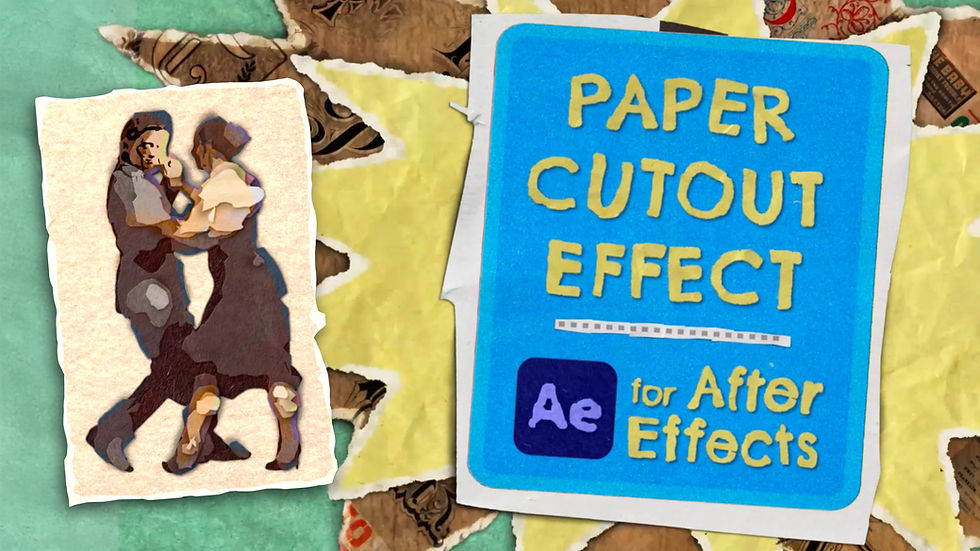
Paper Cutout Effect: Converts your footage into stacked layers of custom paper cutouts with torn edges.
Mixed Media Effect: A massive toolkit of drag-and-drop text effects, stylized filters, animated doodles, and magazine cutouts for scrapbook-style animations.
Creation Art Effect: Turns your video into stunning animated art mediums like pencil sketches, oil paint, watercolors, claymation, and more.
Happy animating, and I'll catch you in the next tutorial! -Noel Powell


Comments